Introducing Apple Pay.

Now available with your MatchMove powered cards.

No wallet? No problem.

Go ahead, leave your wallet at home. With Apple Pay, you can pay with your MatchMove issued card right from your iPhone or Apple Watch.

Pay securely. With Face ID.

Apple Pay uses the security features built into your Apple device, including Face ID and Touch ID—which are designed so only you can authorize payments.

Save time, check out faster.

With Apple Pay, information like your name and address automatically populate at checkout. Now paying is faster than ever.

Set-Up
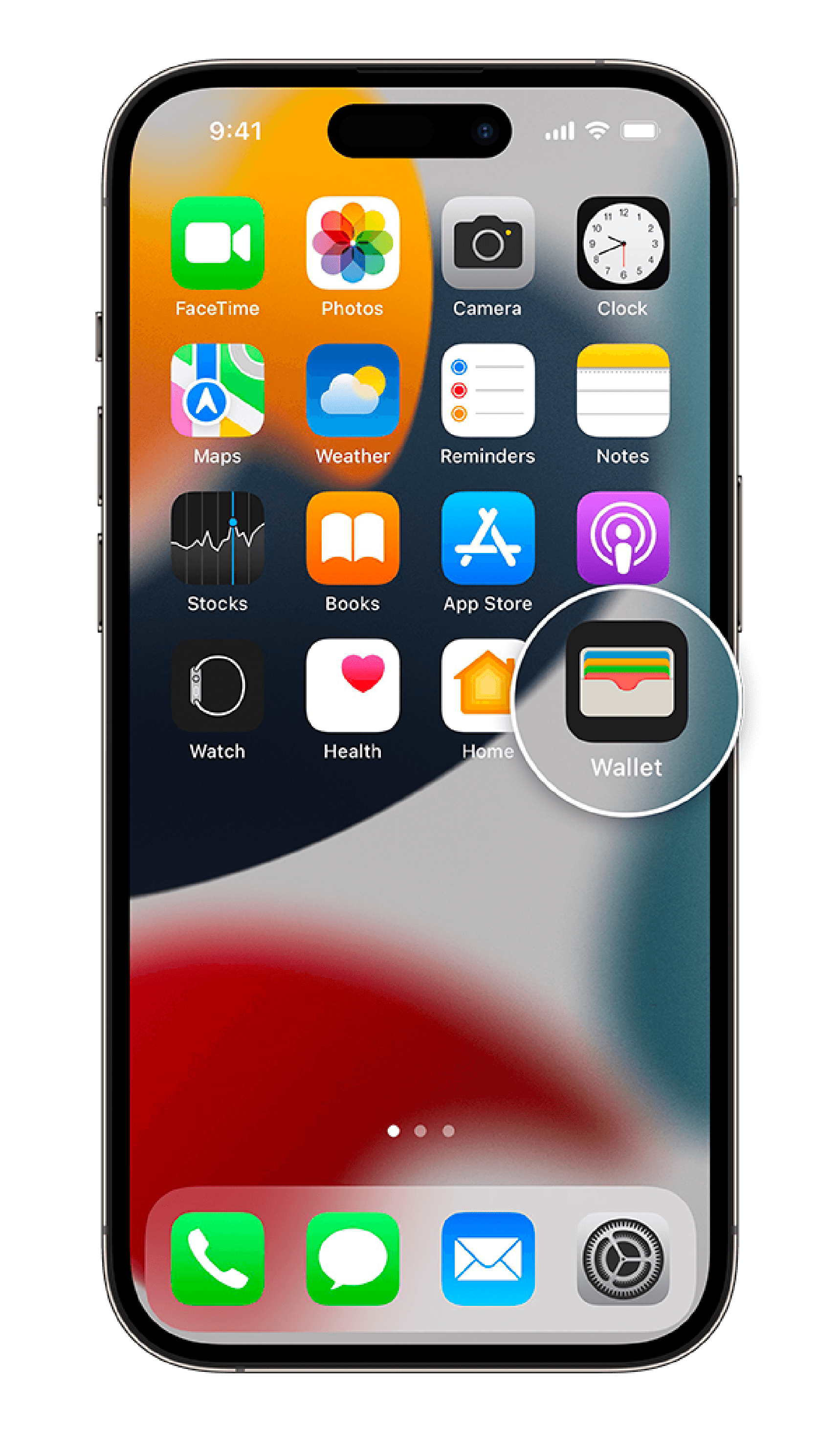
Setup is simple with Apple Pay.

Setup is simple with Apple Pay.

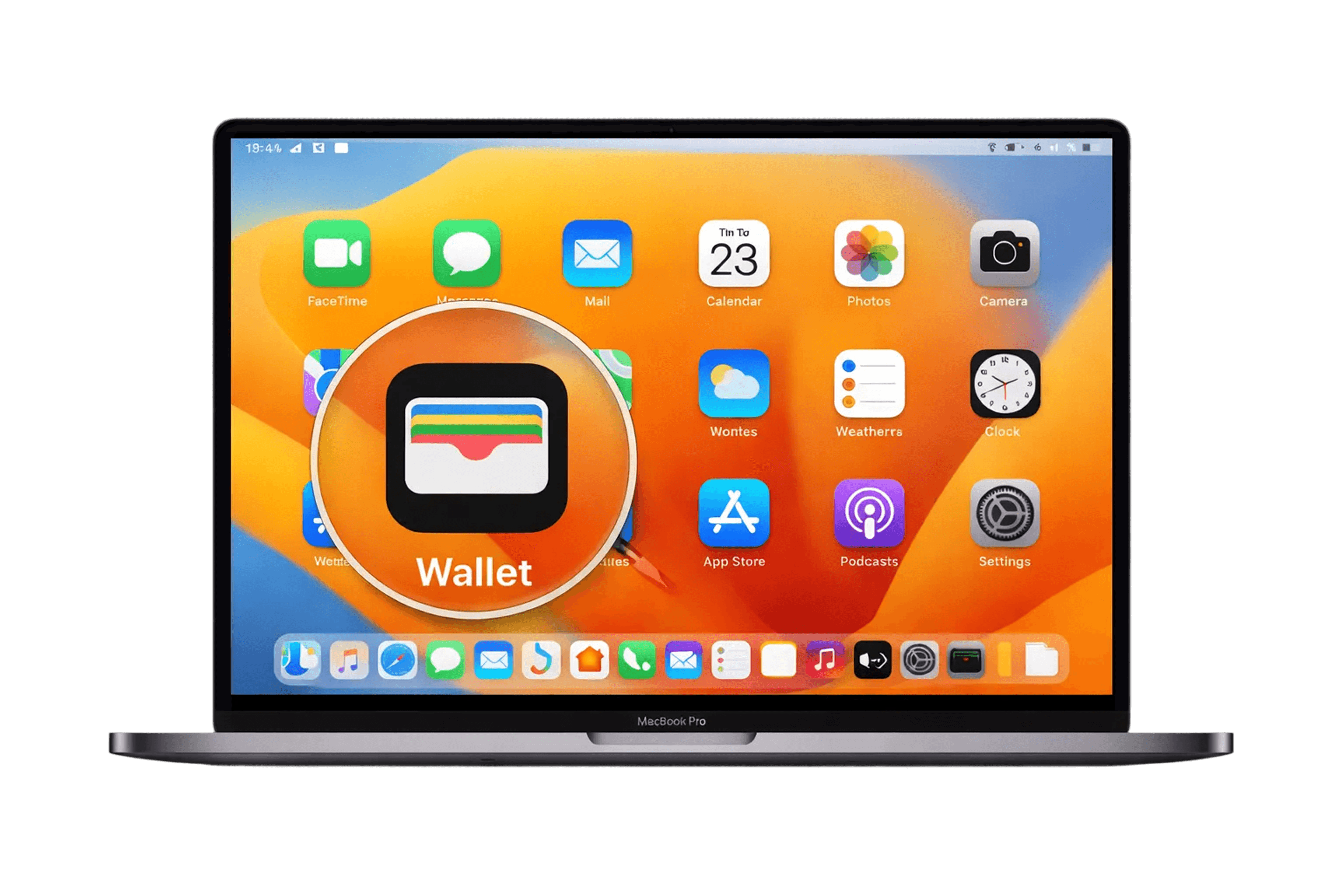
Store your MatchMove powered cards in the Wallet app to make payment via Apple Pay now.

Store your MatchMove powered cards in the Wallet app to make payment via Apple Pay now.

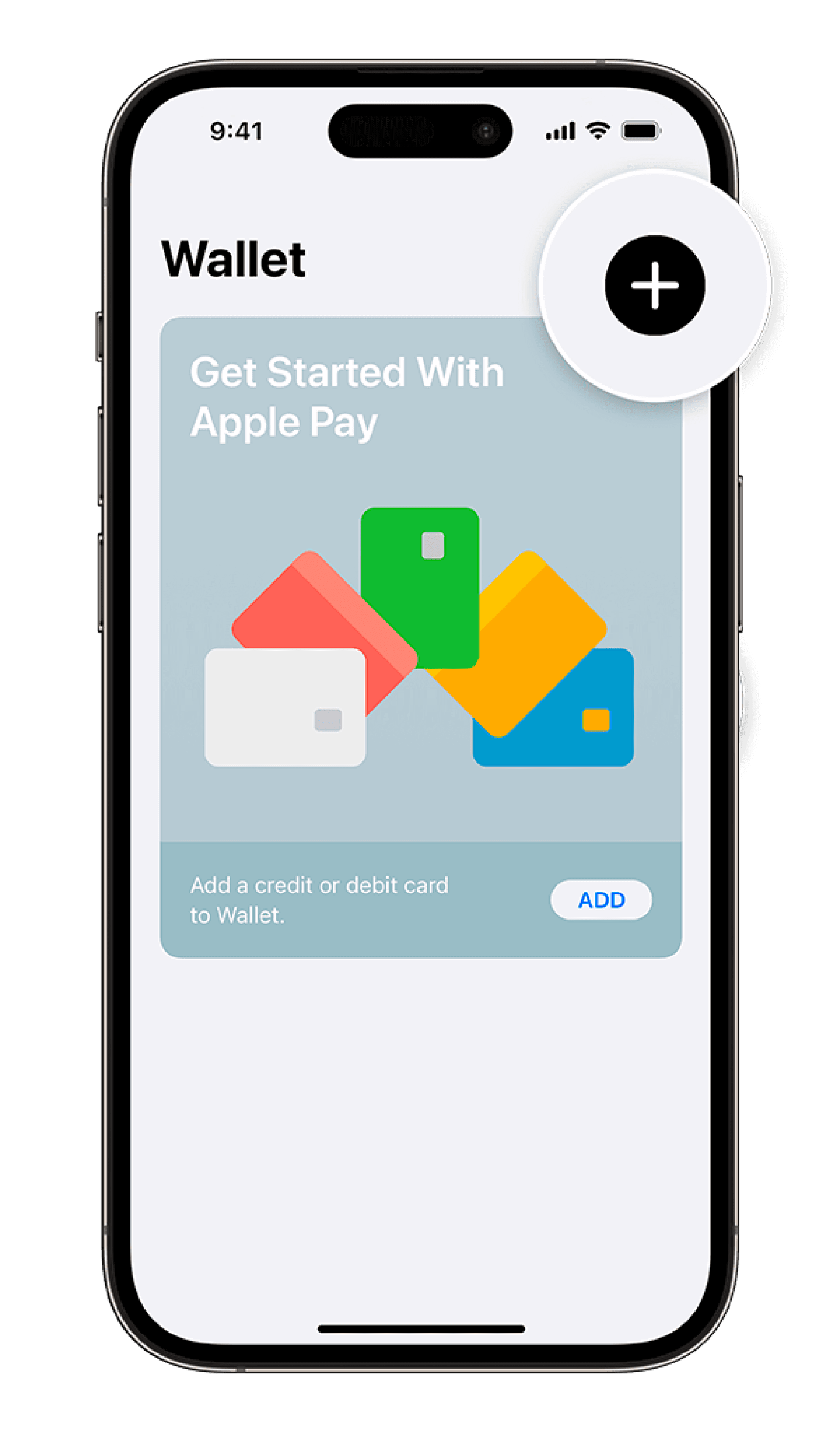
STEP 1

Open the Wallet app

STEP 1

Open the Wallet app

STEP 1

Open the Wallet app

STEP 2

Tap the “+” sign in the upper right corner

STEP 2

Tap the “+” sign in the upper right corner

STEP 2

Tap the “+” sign in the upper right corner

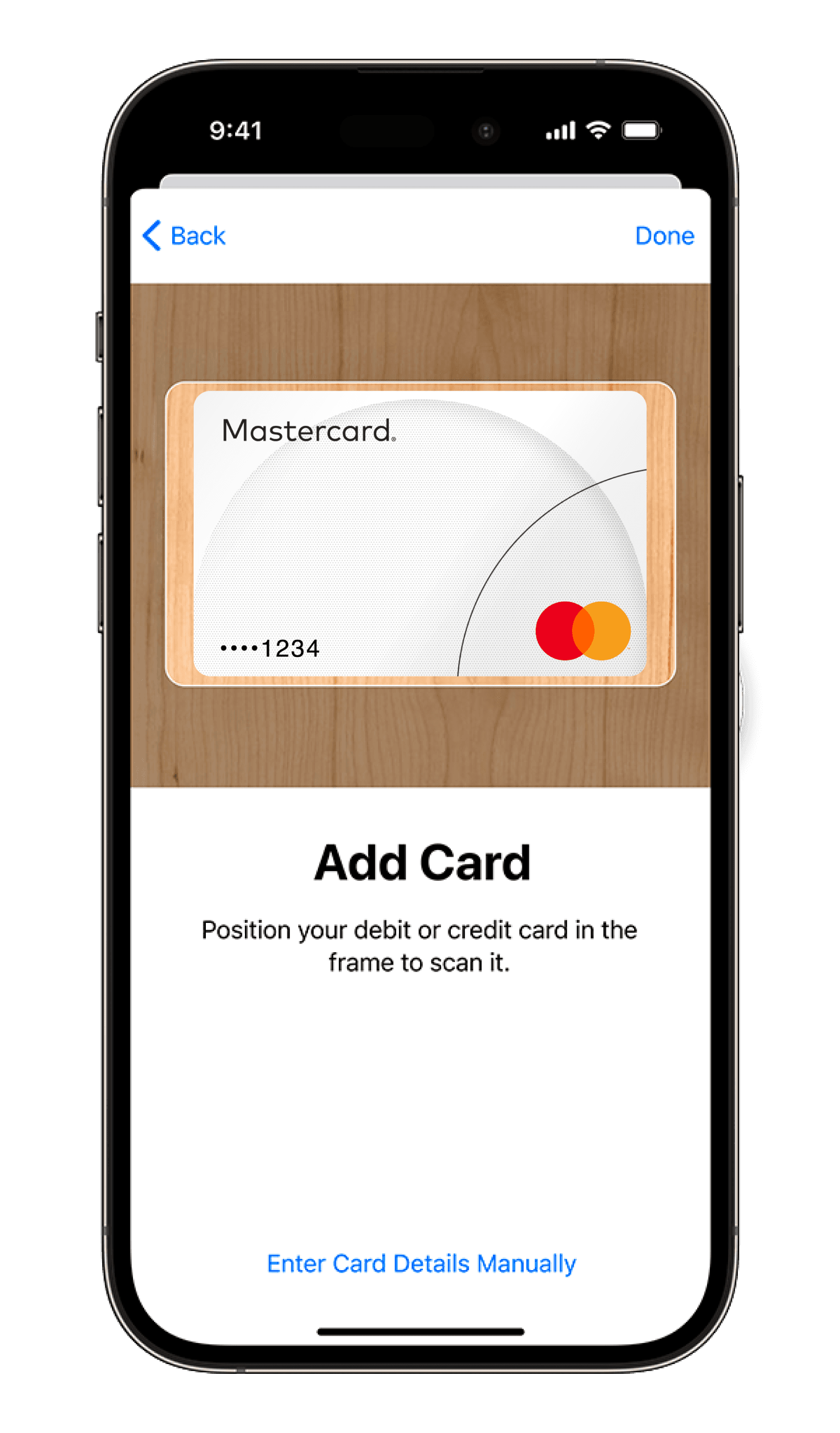
STEP 3

Capture the card details with your camera or enter it manually

STEP 3

Capture the card details with your camera or enter it manually

STEP 3

Capture the card details with your camera or enter it manually

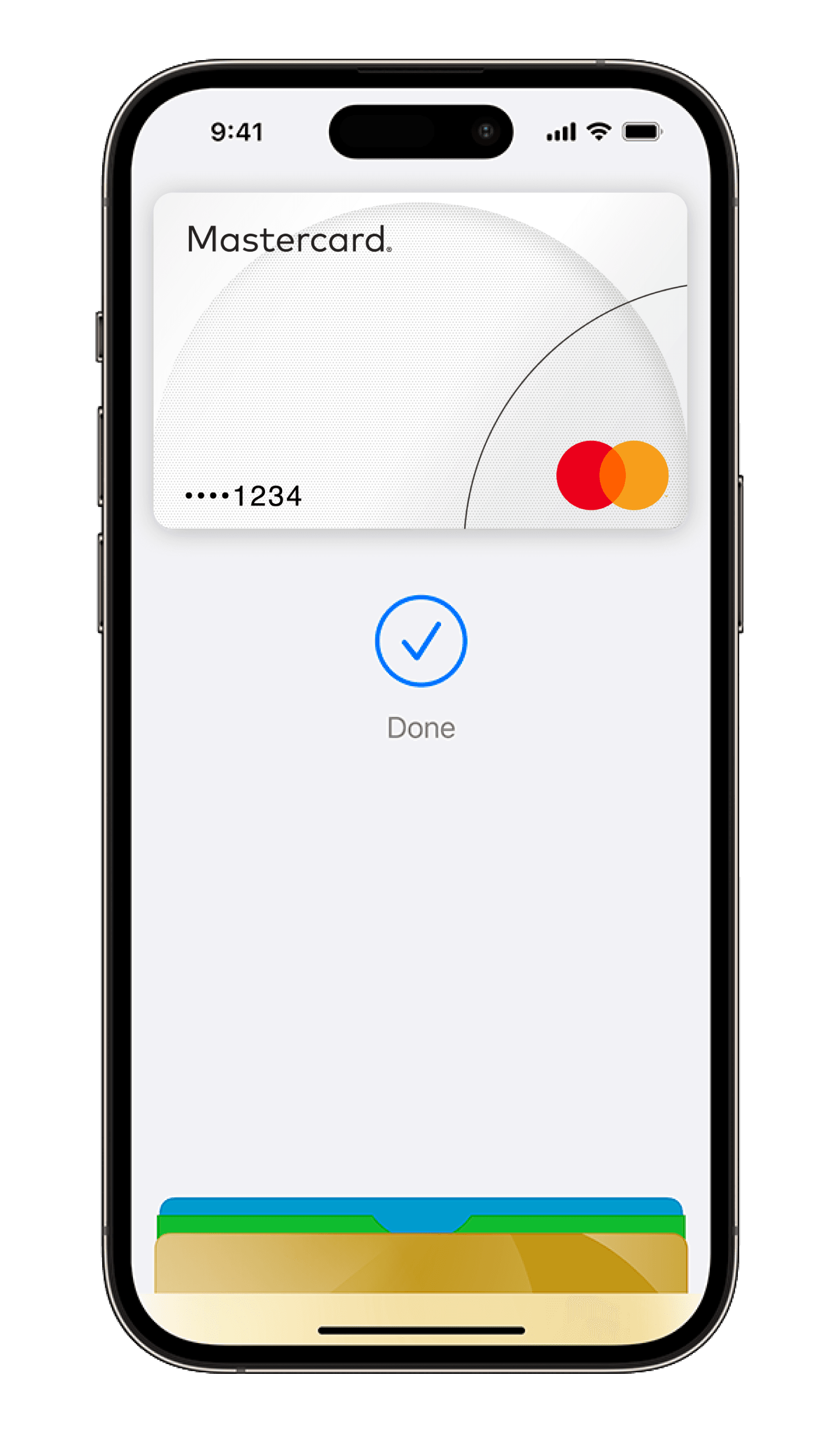
STEP 4

Make your MatchMove Powered Card the default card

STEP 4

Make your MatchMove Powered Card the default card

STEP 4

Make your MatchMove Powered Card the default card

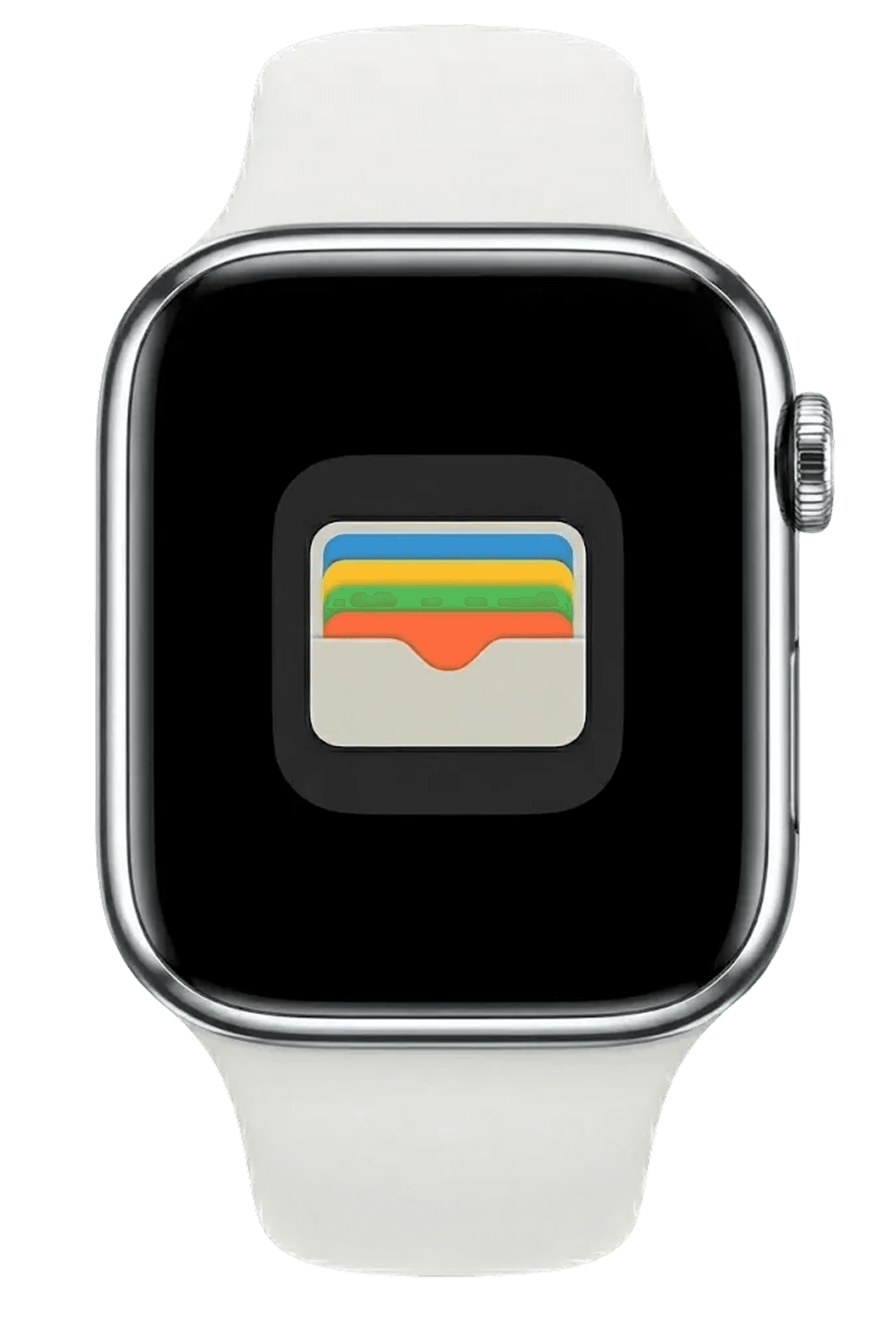
Apple Watch

Open Apple Wallet on your Apple Watch, then tap ‘Add Card’ to get started.

Apple Watch

Open Apple Wallet on your Apple Watch, then tap ‘Add Card’ to get started.

iPad or Mac

On your iPad or Mac, look for ‘Wallet & Apple Pay’ in your System Preferences to get started.

iPad or Mac

On your iPad or Mac, look for ‘Wallet & Apple Pay’ in your System Preferences to get started.

Tap & Pay

In Store

iPhone

Hold your iPhone near a contactless reader with your thumb on Touch ID. Or you can double-click the Home button when your iPhone is locked to access Wallet and quickly make your purchase.

iPhone

Hold your iPhone near a contactless reader with your thumb on Touch ID. Or you can double-click the Home button when your iPhone is locked to access Wallet and quickly make your purchase.

Apple Watch

Double-click the side button and hold the display of your Apple Watch up to the contactless reader. A gentle tap and beep will confirm that your payment information was sent.

Apple Watch

Double-click the side button and hold the display of your Apple Watch up to the contactless reader. A gentle tap and beep will confirm that your payment information was sent.

Within Apps

iPhone or iPad

Select the Apple Pay payment option at checkout, review your details, and place your finger on Touch ID.

iPhone or iPad

Select the Apple Pay payment option at checkout, review your details, and place your finger on Touch ID.

FAQ

Lets Answer Your Questions

Clear answers to your most important questions about our platform and services.

How to use Apple Pay?

How to use Apple Pay on your Apple Watch?

How to add a card?

How to manage the cards that you use with Apple Pay?

Use it where contactless payments accepted.

Just look for Apple Pay mark or the contactless symbol at checkout, then follow the steps to pay.